This Might Be the Coolest iPhone Lockscreen Ever

by Sebastien on August 29th, 2010

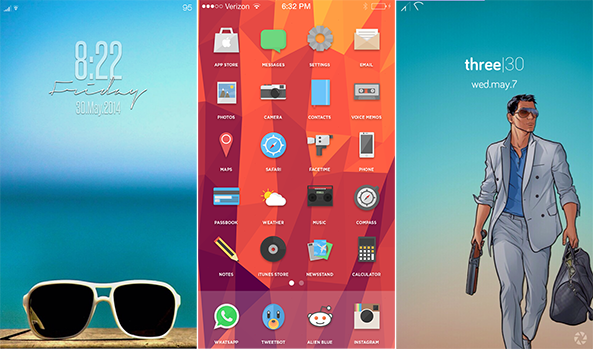
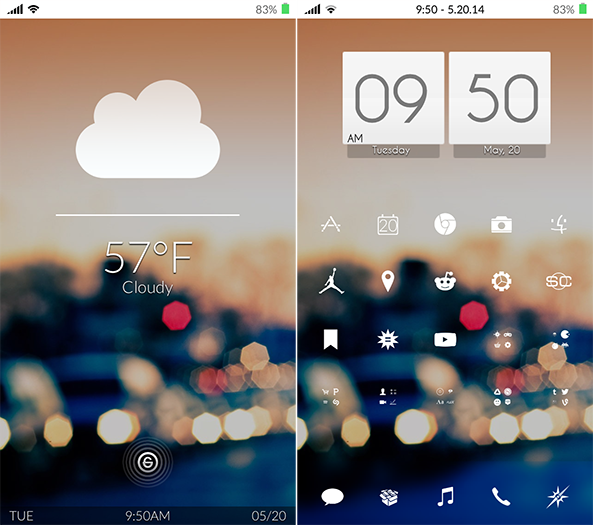
I found this awesome lockscreen on Cydia yesterday, with a little help from AtomicMufin on Twitter. It’s called TypoPhone 4 and it’s basically a lockscreen theme that shows the time and date in large bold letters. It also contains this cool unlock slider. You can download it from Cydia and activate it with Winterboard.

To have it look exactly like the image above, you’ll also need to download Lockscreen Clock Hide from Cydia, which like the name suggests, hides the clock on your iPhone. Read More


Jailbreak Mod Supposedly Boosts Your iPhone Volume

by Sebastien on August 28th, 2010

There is a new jailbreak app available called Volume Booster 4.0 that supposedly boosts up the volume of your iPhone. I say “supposedly” because it didn’t work for me, although I tried on 2 different iPhones. Maybe you’ll be more successful than I was…

After downloading Volume Booster from Cydia, you have to go an activate it in WinterBoard, just like you would activate a theme. You won’t see any icon or options in the settings.app. Read More


The Art Of iPhone Customization

by Fate on August 3rd, 2010

Customization is probably one of the biggest reasons people jailbreak their iDevices, I know personally I love the ability to make my iPhone mine. There are endless possibilities for customizing you device starting from the smallest things such as battery themes to full blown all out UI custom themes. There is a plethora of themes to choose from on Cydia and all of them are beautiful in there own right. Some of them are free and some you have to pay for. In my experience the paid themes are usually worth the money because they are 100% original and are normally a work of art.

I have recently got into building themes which started of as just graphical but I soon realized that it went a lot deeper. I started learning a little HTML and .css (style sheets that simplify HTML) and springboard strings, just to name a few non graphical modifications that can be made. I soon had created my own complete theme, Carbon OS which has a lot of extras (and is available in Cydia).

I thought I would share some easy and effective methods for learning to build these themes in case you guys want to get into doing it too. I have compiled a small list of things you will need to do so and some pointers to help you get started. First things first though lets make sure we have a jailbroken device with Winterboard installed and have the ability to SSH into your device. If you need help with any of this check out our forums or our jailbreak section on this blog. Now on to what you need. Read More


Stickers: A Really Original iPhone Theme

by Sebastien on June 2nd, 2010

This theme is called Stickers and is available on Cydia. I like it so much that I installed it on my iPhone. The only downside is that there are very few custom icons for it. Looks great though. What do you think?


How to Customize Your iPhone With Themes

by Sebastien on May 20th, 2010

In this article, I would like to show you how to customize your iPhone, iPad or iPod Touch by adding a theme to it. This is a very simple thing to do.

The most advanced readers of this blog will most likely see this as old news but not everyone is an iPhone expert and I’ve been getting the same questions a lot lately:

  • how can I customize my icons?
  • how can I add a theme to my SMS application?
  • how can I add a wallpaper to my springboard?
  • etc…

By default, your iPhone is not very customizable. Sure you can add a wallpaper to the lockscreen, but that’s about it. iPhone OS 4 will give you more options and will allow you to also add a wallpaper to your springboard, but that’s still not enough to many of us who wish to customize our iDevices from head to toes.

Thankfully, the jailbreak community is here to take over where Apple stopped.

Theming your iPhone is very easy. Follow these simple steps and you should be good to go in 10 minutes.

Step 1: Jailbreaking

The very first step is to have a jailbroken iPhone (or iPad, or iPod Touch). I understand that “jailbreaking” can sound intimidating, especially for those of you who aren’t very technical people. But jailbreaking is a fairly simple and safe process.

For more information about jailbreaking, I suggest you read about what jailbreaking is and why jailbreak your iPhone.

If you haven’t been discouraged yet, then it’s time for action! There are various methods for jailbreaking your device, depending on the model and the software version.

At the time I am writing this, the latest iPhone firmware is 3.1.3 and can be jailbroken with a tool called Spirit in less then 1 minute (see Spirit tutorial here).

To make sure you are using the latest jailbreak available, please visit this page and search for your device model and firmware version, then use the relevant jailbreak tool.

After jailbreaking your iPhone, you will have a new application called “Cydia” on your spingboard. Cydia is like the App Store for jailbreak apps.

Once you have jailbroken your iPhone, we can go to the next step.

Step 2: Install WinterBoard

In Cydia (the new app that was installed when you jailbroke your iDevice), search for WinterBoard.

WinterBoard is an application available for jailbroken iPhones and idevices only. This application allows you to download themes and to activate and manage them on your iPhone.

Once you have located the application, install it. It should take no more than a few seconds. After installing WinterBoard, I suggest you reboot your device.

Step 3: Find and Activate Themes

Now that we have installed our theme manager WinterBoard, we need to find themes. This is probably the hardest part of the job because there are hundreds, if not thousands of themes available.

To search for a theme, go to Cydia > Sections > Themes. You will notice there are sections for specific themes such as battery themes, keyboard themes, etc, but I just want to focus on the essential.

There are themes for every tastes: bands, cars, celebrities, colorful, abstract, etc… Chances are if you’re looking for something specific, you will find it.

Not all themes are equal. Some themes only include a wallpaper, some include full customization with battery, dock, icons, dialer, keyboard, SMS, and more. Again, you will have to spend some time browsing to find the right theme for you.

Once you found a theme, simply install it in Cydia, then go back to WinterBoard to activate the theme. In WinterBoard, go to “Select Themes” and select the theme you just downloaded.

Close WinterBoard and wait for your iPhone to respring.

You’re done! Your iPhone or iDevice is now customized.

Once you’re more familiar with themes and WinterBoard, don’t hesitate to explore more themes and the various options of WinterBoard. You can customize virtually every aspect of your iPhone, iTouch, or iPad.

Happy theming!


Featured iPhone Theme: iAwesome

by Sebastien on May 10th, 2010

I found out about a very nice theme called iAwesome thanks to AIS so I wanted to share it with you.

iAwesome is a WinterBoard theme that contains 304 redesigned icons (though all icons are modded… more to come on that), wallpaper, status bar, lock screen wallpaper, lock screen battery, badges, pop-ups and quite a few UI mods.

The nice thing about this theme is that it contains an icon overlay which means that all icons are modded… not just icons that have been designed for the theme. If you go into the App Store, you will see that even the icons in the AppStore are modded with the overlay.

What do you think of this theme?


17 Pink iPhone Themes for Women

by Sebastien on April 22nd, 2010

Is your girlfriend’s iPhone a little boring? Then spice it up with this selection of 17 pink iPhone themes for women, or for men with very girlie tastes…

All these pink iPhone themes are available from Cydia and are for use with WinterBoard. Needless to say that you have to jailbreak your iPhone before being able to install any of these themes. Read More


Create Your Own Custom Theme With iPhone Theme Simulator

by Sebastien on January 21st, 2010

If you don’t like our iPhone Download Blog theme, then you might be able to create your own custom iPhone theme with iPhone Theme Simulator.

iPhone Theme Simulator is a new tool that lets anyone easily create and test WinterBoard themes for iPhone and iPod Touch right from your PC.

This neat little software easily lets you customize most parts of the UI, including the lockscreen, springboard, wifi and carrier logos, apps icons, and much more.

What’s great about iPhone Theme Simulator is that it allows you to test your theme directly from your PC, without having to load it on your iPhone and respringing it. It’s definitely a great tool for anyone interested in iPhone theme design.

You may download iPhone Theme Simulator from here.

If you have tried iPhone Theme Simulator, I’d like to hear your comments on it.


Get This iPhone Theme Now!

by Sebastien on January 19th, 2010

If you’re a fan of this blog, then you owe it to yourself to download and install this WinterBoard theme designed by iTito, and specifically branded for the iPhone Download blog.

This is a beautiful Darkblue Theme which includes more then 70+ icons, Lockscreen, Landscape SMS Theme, Dock and status bar.

You can download the theme from here, or go to Cydia and search for “Darkblue iPhone Theme”.

I want to thank iTito for his great work on this custom theme for the blog.

Do you like it?


Featured iPhone Theme: Amphibious

by Sebastien on December 24th, 2009

I found this really funny theme on Cydia called Amphibious so I thought I would feature it on the blog. I personally don’t see myself with such a theme but it is pretty original…

 
Page 1123