How to Unlock iPhone 3G iOS 4.0.2 with UltraSn0w

by Sebastien on August 14th, 2010

This step by step guide and tutorial will show you how to unlock your iPhone 3G iOS 4.0.2 using UltraSn0w 1.1-1. At the time I am writing this, it will only work with the iPhone 3G since there is no jailbreak for other devices.

Step 1: Jailbreak your iPhone 3G using RedSn0w.

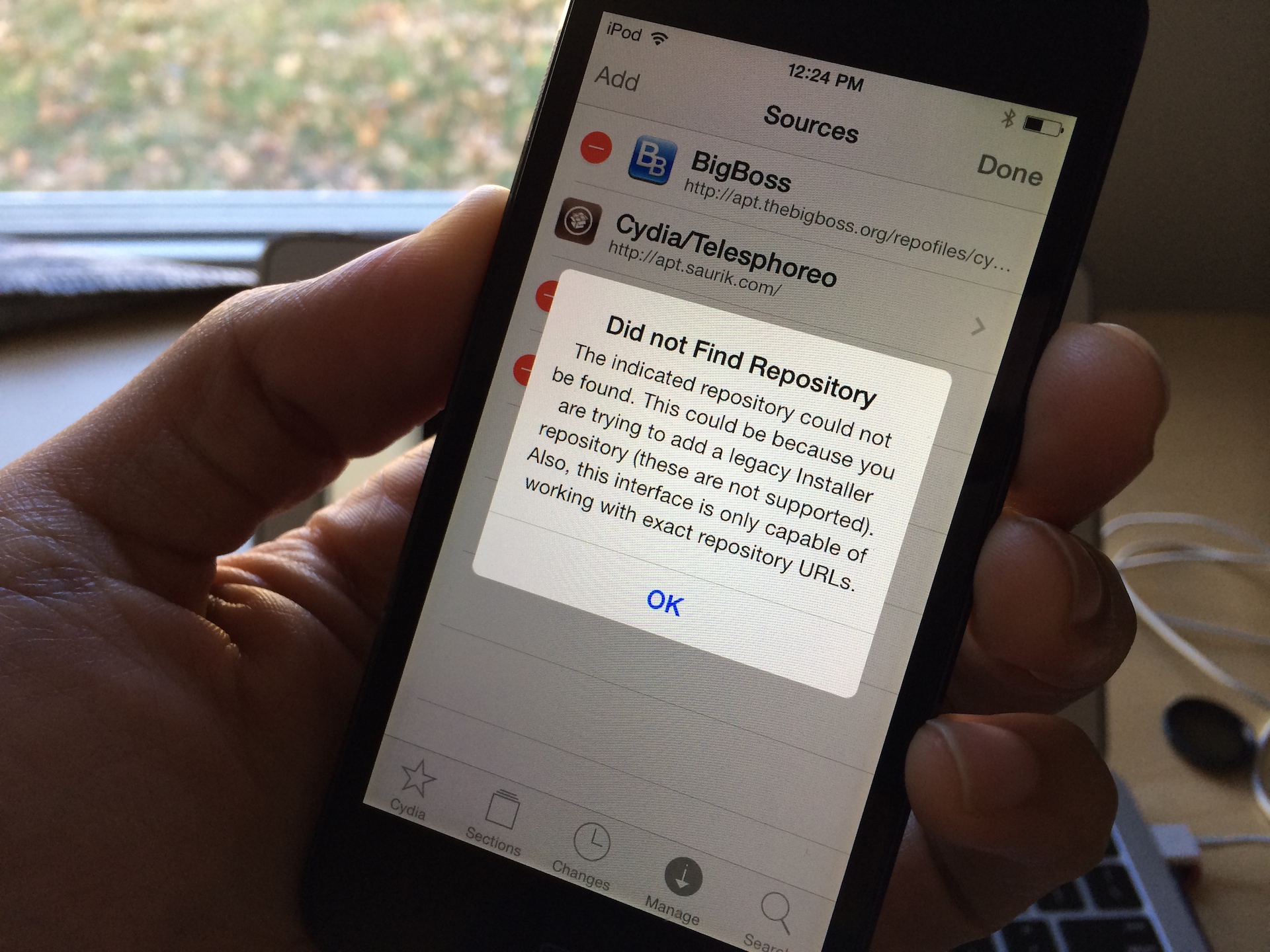
Step 2: Go to Cydia and search for UltraSn0w. If it’s not there, you might have to add the following repo: repo666.ultrasn0w.com

Step 3: Install UltraSn0w.

Step 4: Reboot your iPhone.

You’re done. You should now be able to use your iPhone 3G with any carrier.


UltraSn0w Unlock Used on 784,974 iPhones Within the Last 5 Days

by Sebastien on August 9th, 2010

Some quick stats for you about the UltraSn0w unlock for iPhone. According to the Dev Team, UltraSn0w was used to unlock 784,974 iPhones within the last 5 days. That’s huge! Wondering what countries are the largest users of UltraSn0w? Have a look at the numbers above. USA is #1, followed by China and Germany.


How to Unlock iPhone 4 iOS 4.0.1 with UltraSn0w

by Sebastien on August 4th, 2010

This guide and tutorial will show you how to unlock your iPhone 4 running iOS 4.0.1 using UltraSnow 1.0-1. This method will not only work with the iPhone 4 but also with older models. UltraSnow 1.0-1 will unlock:

  • The iPhone 3G, iPhone 3GS, and iPhone 4
  • Basebands 01.59.00, 04.26.08, 05.11.07, 05.12.01 and 05.13.04

Note that UltraSn0w will work no matter what your iPhone model number is.

In order for UltraSn0w to work, your iPhone must be activated. If it isn’t, follow these instructions to activate your iPhone without the original SIM card.

Step 1: Jailbreak your iPhone using JailbreakMe.

Step 2: Go to Cydia and search for UltraSn0w. If it’s not there, you might have to add the following repo: repo666.ultrasn0w.com

Step 3: Install UltraSn0w.

Step 4: Reboot your iPhone.

Done! Your iPhone should be unlocked. You can now pop in any SIM card. If you unlocked an iPhone 4, you might have to trim the new SIM so it fits in the tray.

Because the iPhone doesn’t support T-Mobile’s 3G frequencies, T-Mobile users in the US should turn off 3G in Settings > General > Network.


UltraSn0w Unlock for iPhone 4 iOS 4.0.1

by Sebastien on August 3rd, 2010

After a long expectation, the Dev Team just released an updated version of UltraSn0w that will unlock the iPhone 4 as well as the iPhone 3G and 3GS running iOS 4.0.1.

After the JailbreakMe jailbreak released this weekend, the UltraSn0w 1.0-1 carrier unlock is the cherry on top. It is compatible with the iPhone 4 baseband 01.59.00 and the iPhone 3G/3GS basebands 04.26.08, 05.11.07, 05.12.01 and 05.13.04.

You should see UltraSn0w in Cydia under the repo666.ultrasn0w.com repo.

Good job, Dev Team! Good job.

[Dev Team Blog]


How to Unlock Your iPhone 3G or iPhone 3GS iOS 4 with UltraSn0w

by Sebastien on August 1st, 2010

Now that the iOS 4 jailbreak has been released, those of you who were waiting for an unlock can unlock their iPhones with UltraSn0w. Before getting into the details, let me tell you more about who this is for and who this is not for.

The latest version of ultrasn0w will unlock the iPhone 3G and iPhone 3GS running iOS 3.1.2 or higher. As long as you are running iOS 3.1.2 or up to 4.0.1, you’re good.

This being said, ultrasn0w will not unlock the iPhone 4 at the time being. The Dev Team needs a little bit more of time to test out the iPhone 4 unlock before releasing it. I believe they will release the iPhone 4 unlock in the next few days, so stay tuned.

This guide and tutorial will show you how to unlock your iPhone 3GS or iPhone 3G running iOS 4 using ultrasn0w.

Step 1: Make sure your iPhone is backed up in iTunes.

Step 2: Jailbreak your iPhone using JailbreakMe (see instructions here).

Step 3: After the jailbreak process is done, go to Cydia and search for ultrasn0w.

Step 4: Install ultrasn0w and reboot your iPhone.

Step 5: Done!

You now have an unlocked iPhone 3G or 3GS.


How to Unlock the iPhone 3G iOS 4.0.1 with UltraSn0w

by Sebastien on July 15th, 2010

The latest firmware update that brought us iOS 4.0.1 did not update the baseband which remains at version 05.13.04. This means that if you have an iPhone 3G, you can jailbreak iOS 4.0.1 and unlock your it with UltraSn0w.

Step 1: You will have to jailbreak your iPhone 3G iOS 4.0.1 first.

Step 2: Then simply add this source to Cydia: http://repo666.ultrasn0w.com. More details here.

Step 3: Finally, search for “UltraSn0w” in Cydia and install the application. Reboot your iPhone, and you’re done. You can now use your iPhone on a different carrier.

There is no iOS 4 jailbreak for iPhone 3GS and iPhone 4 yet but I guess it’s just a matter of time now.


Looks like I now have an unlocked iPhone 4 :)

by Sebastien on July 13th, 2010

These are PlanetBeing’s own words, talking about the iPhone 4 unlock on Twitter. The Dev Team has been working on the iOS 4 and more specifically the iPhone 4 unlock for quite a while now and it seems we’re not too far from an official release, as we talked about yesterday.

Looking at MuscleNerd‘s Twitter activity, one can only assume that the famous ultrasn0w iPhone unlock will be updated soon to give access to an iPhone 4 unlock to the masses. However, we need a jailbreak first, and the word going around is that Spirit for iOS 4 will be released as soon as the unlock is ready.

With Apple rumored to push an update to iOS 4, the Dev Team might want to wait a bit before releasing a jailbreak and unlock. We’ll see.


iPhone 4 Unlock Ready for Release?

by Sebastien on July 12th, 2010

While GeoHot is teasing us with fake jailbreaks for iPhone 4, the Dev Team is hard at work on an i4 unlock, and they seem to get closer.

In a tweet sent out his  morning, Dev Team front man MuscleNerd confirmed that they are one step away from being done with the iPhone 4 unlock:

Full i4 bars with custom “steve” background task spitting out “One more thing” http://is.gd/doJXt  – all pieces in place:)

If I understand this correctly it might mean they just have to package UltraSn0w and put this on Cydia… If that’s really what’s going on, it also means the release of Spirit for iOS 4 is right around the corner as well.

Stay tuned!


Dev Team is One Step Closer to An iPhone 4 Unlock

by Sebastien on July 6th, 2010

MuscleNerd has been teasing us quite a bit lately on Twitter. One of his most recent tweets suggests that although the new baseband OS is giving them a hard time, the Dev Team is indeed one step closer to an iPhone 4 unlock, which requires a complete rewrite of the unlocking tool UltraSn0w.

Now that the Spirit jailbreak is ready and the Dev Team is being this close to finish up the work on the iPhone 4 unlock, we can only imagine (and hope?) that both the jailbreak and unlock will be released in a few weeks when Apple ships an update to iOS 4 in order to fix the antenna issue.


iOS 4 Unlock for All Basebands Available

by Sebastien on June 21st, 2010

That was quick. It was so quick that this iOS 4 unlock for all iPhone basebands even came before an official jailbreak for the latest firmware.

UPDATE: There is now a jailbreak for the iPhone 3G on iOS 4.

In a tweet sent to their followers today, the Dev Team released UltraSn0w 0.93 that will unlock basebands 04.26.08 thru 05.13.04. Yes, that means that UltraSn0w will unlock the following basebands:

  • 04.26.08
  • 05.11.07
  • 05.12.01
  • 05.13.04

This is exactly the reason why I told jailbreakers and unlockers to hold off on updating to iOS 4. If you haven’t updated to the latest firmware then you will be able to install UltraSn0w via Cydia.

If on the other end you have already updated to iOS 4, then rejoice because the Dev Team will update their jailbreaking tools (namely RedSn0w and PwnageTool) so you can jailbreak iOS 4. If you have an iPhone 3G on iOS, you can jailbreak by following these instructions.

Here are the instructions to unlock your iPhone:

  1. Make sure your iPhone is jailbroken.
  2. Go to Cydia and search for “ultrasn0w”. If you can’t find it, add the following repo: repo666.ultrasn0w.com
  3. Install UltraSn0w.
  4. Reboot your iPhone.
  5. Done!

Feel free to write a comment if you have any question or concern.

 
Page 11234