Prototype Physical Keyboard Accessory For Your iPhone 4

by Ethan on August 20th, 2010

Do you remember last year when Mobile Mechatronics released a physical keyboard that attached to the iPhone 3G and 3GS called the iTwinge? It turns out that it was a big enough hit for another company to put the click button feel to the iPhone 4.

A designer by the name of Altamash Jiwani has created a prototype that is a bit more complex than the previous accessories. The design resembles the Apple Bumper with the keyboard on rails that make the home button clearable with a slide. It would disable the functionality of the keyboard by way of its dock connect-ability. Not stopping there, the bottom would serve as a female dock port which would allow syncing without removing the keyboard. Read More


BlindType, A Keyboard You’ll Most Likely Never See on the iPhone

by Sebastien on July 22nd, 2010

BlindType is a keyboard that learns from your keystrokes and predicts what you intend to write. Additionally, BlindType constantly adjusts to the user’s “perceived” keyboard and typing style. Does that sound impossible? Then check out this video.

Don’t rush to the App Store yet as BlindType hasn’t been released yet. The chances of seeing BlindType in the App Store one day are actually pretty slim but it might get its way to Cydia.

Thanks Git59 for the tip.


How to Spice Up Your iPhone Keyboard With Symbols

by Sebastien on July 3rd, 2010

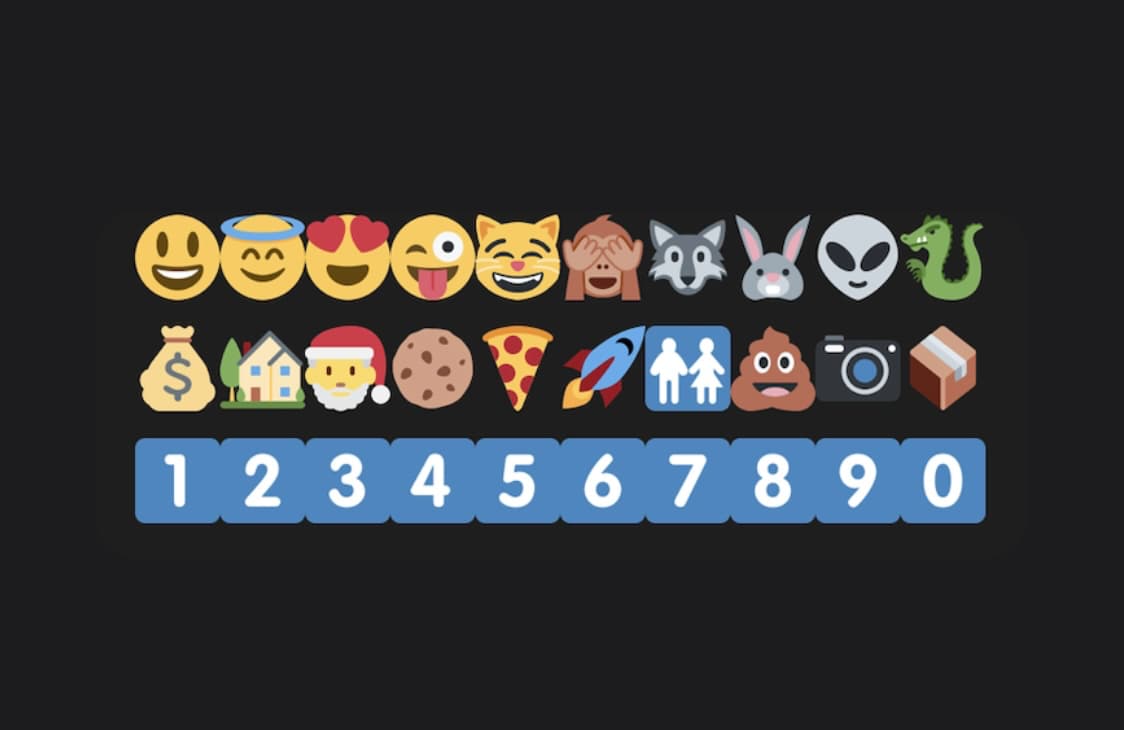
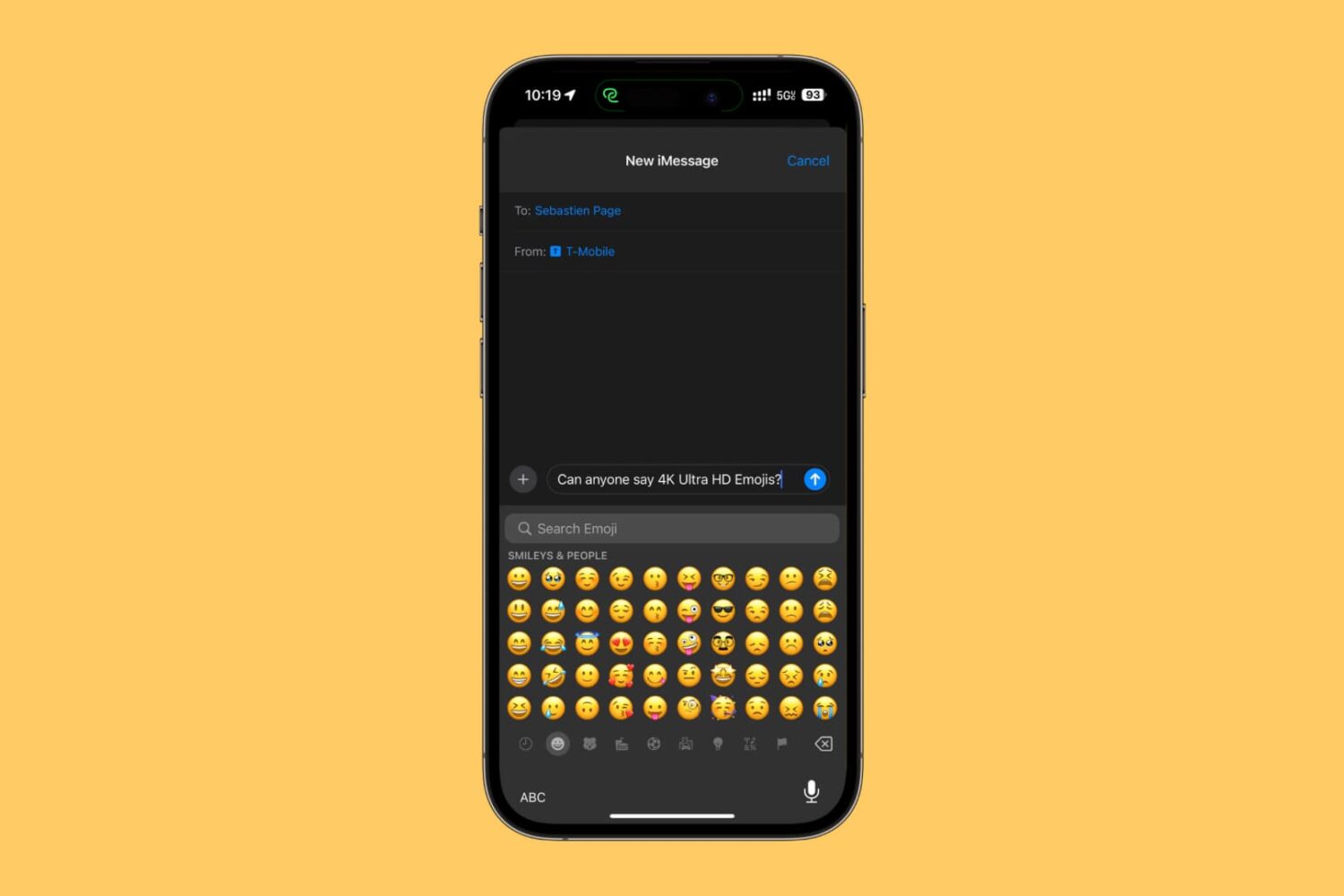
If having emoji icons on your iPhone keyboard is not enough, maybe you can follow this little trick that will easily allow you to add symbols to your text entries.

To do so, go to http://mrgan.com/gb/ from your iPhone and follow the onscreen instructions. It will add a bookmark to your homescreen from which you will then be able to copy/paste various symbols.

There are 48 symbols right now but more will probably be added in the future.


What The Duck? Here Is How To Add New Words To The iPhone Dictionary

by Sebastien on January 19th, 2009

If you ever tried to type such words as “fuck”, or “fucking” on your iPhone, you most likely ended up with “duck”, and “ducking”, if you didn’t manually select the right word you wanted to type. While the iPhone is supposed to add words you typed several times to its dictionary, it doesn’t work for some words (fuck being one of them).

My favorite iPhone blogger, Erica Sadun, posted a great tip about this issue over at Ars.

That database is stored in the “mobile” user directory, in /private/var/mobile/Library/Keyboard. The file is called dynamic-text.dat. It consists of a (mostly) plain text list of words that the iPhone has marked for special attention. Once a word appears in that list, the autocorrect feature updates itself and accepts those items as proper spellings. It’s really convenient for jargon words and last names that are part of your normal typing but don’t appear in the standard dictionary.

How to fix this? Simply go to Safari, and open a new browser (very important!). Now tap the Google search field and start typing the word you want to add to the dictionary. Tap “Google” to launch the search. Now you can close Safari and open your Notes app and type “fuck”. No more “duck”! Your iPhone finally learned a bad word!


iPhone External Keyboard

by Sebastien on December 31st, 2008

This is an interesting concept developed by Ralf Ackermann…

An external iphone / ipod touch keyboard – using a more “mainstream approach”. The keyboard (it’s a standard Freedom Universal Keyboard) uses the Bluetooth SPP (Serial Port) profile to talk with a Robotech Bluetooth module ( www.tigal.com/product.asp?pid=1124 ). This module is placed in a modified iphone battery sleeve and connected to the iphone serial port. The jailbroken iphone runs veency (a VNC server) and a tiny libvncclient based VNC client for keyboard event injection to whatever application you use.

All schematics and source code to appear on www.ubiqkom.org soon.

More photos here.


iPhone 3G Gets External Keyboard

by Sebastien on November 5th, 2008

If you’ve been complaining about the lack of external keyboard on the iPhone, rejoice! Well, don’t rejoice too much as this hack is very close to being useless but I guess what’s interesting is that some people spend time on that kind of stuff.

It seems that the person behind this hack is running some type of Ruby code on a jailbroken iPhone and plugged and external keyboard via USB. You can see the final result in this boring video.


iPhone Tips and Tricks: Keyboard

by Alicia on October 27th, 2008

Keyboard

Slide to the Right Letter

I know that most people have figured this one out, but to be complete, and for Newbies, I thought it would be good to add this.  When you press on a key and you hit the wrong letter, simply slide your finger to the right letter (without lifting it) and lift up to correct your mistake.

Slide to Period Tapping

Instead of switching between letter and punctuation modes, slide your finger to the @123 button, but don’t release it until after sliding and releasing over the period key. The keyboard will switch back to letter input automatically. This makes a big difference. Be sure to measure the improvement of the slide method on your typing speed. This is also known as the McCallum method via Pogue. An otherwise, well documented shortcut, but addresses a very common complaint about the iPhone keyboard.

Misspelling Contractions

You can intentionally spell it’s incorrectly as “itsp” or “itsa” and “it’s” will be suggested. The A and P keys are ideally positioned for this kind of a shortcut. To get popular contractions filled in automatically just add a third repetitive letter to get Safari to suggest the contraction word. Examples include “helll” -> “he’ll” , “welll” -> “we’ll”, “weree” -> “we’re” etc.

Keyboard Switching

Press the space bar from the .123 keyboard to return to the alpha keyboard. This can be good when you just need a number or a period. If you have the iPhone 1.1.1 update you can simply double-tap the space key to get a period.

Automating Other URL Suffixes

On the keyboard press and hold the .com key to see other tld extensions based on your selected languages. For example in the U.S. you will see .net, .edu .org, with German you will see .edu .org .de, and with Spanish you will see .edu .org and .es in a pop up list.

Don’t Even Bother Typing .COM

Just like a real browser, it appears that the iPhone will allow you to type in most .com URLs without having to type the actual .com or pressing the button. Simply press Go after typing the site name and iPhone’s Safari browser should automatically insert the .com for you.

Magnifying Glass

When typing in an email message, URL, web page text box, or any other item that requires the keyboard, you may make a spelling error. To fix any errors that aren’t at the tail end of the string you just typed, hold your finger over the text until a small magnifying glass appears. You will now be able to position the cursor at the proper location in order to make your change.


iPhone Keyboard Tips & Tricks

by Sebastien on June 6th, 2008
  1. Typically apostrophes are auto suggested. In some cases like “it’s” you may mean its and therefore the iPhone will not autocorrect as you may have meant to type “its.” Below are some suggestions to resolve this when typing certain words requiring an apostrophe…
    • It’s – type itsa
    • He’ll – type helll
    • We’ll – type welll
    • We’re – type weree
    • They’re – type theyrr
  2. To avoid switching back and forth between ABC and 123 you can simply move your finger to the 123 button and without lifting your finger move it to the character/number you want to add, then lift your finger