 My fiancee Tina just got her first iPhone today and one of the first few things we wanted to do was to sync our shared Google calendars to each other’s iPhone. I thought that since we already share our Google calendars “online”, it would automatically sync both our calendars on our iPhone by setting up Google Sync. It didn’t. Turns out it was just a tiny bit more complicated than this.
Here are instructions to sync shared Google calendars between iPhones:
I assume that your Google calendars are already shared. If not, go to Google calendars and make sure you invite your friend/wife/colleague/whoever to share the calendar you want to see on your iPhone.
Step 1: Install Google Sync on your iPhone. At the very least, you should choose to sync your calendar. This will sync your Google calendar with your iPhone.
Step 2: Now we’re going to add the shared Google calendar you want to see on your iPhone. In my case, I want to see Tina’s calendar on my iPhone calendar. To do so, go to http://m.google.com/sync/ from your iPhone, login and select your device.
Step 3: Select the shared calendar you want to see on your iPhone.
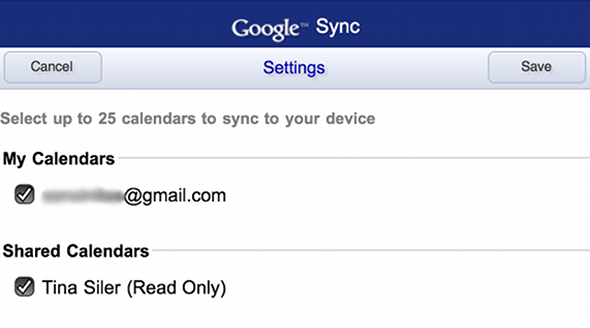
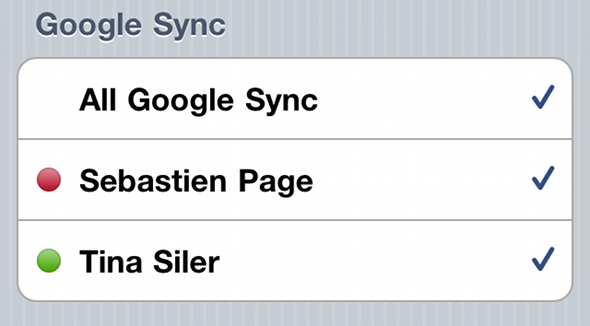
Step 4: Go to your calendar app on your iPhone and make sure to select the new shared calendar you just added. Your iPhone will start being populated with its data almost instantly.
If you use Google Apps, the steps are slightly different:
- Open the Safari browser on your phone and go to http://m.google.com
- Click on Google Apps user? at the bottom of the screen.
- Enter your domain name (e.g., YourDomain.com).
- Click the Sync icon in your domain area (this section has a green background).
- Sign in if required.
- Select your device to configure Calendars.
Here you go, now you can see shared calendars on your iPhone.