How to set up Hotmail on the iPhone

by Sebastien on October 11th, 2008

If you’ve tried to configure Hotmail for your iPhone, you’ve most likely faced a pretty big issue: you just can’t! The problem is that Hotmail is not as “open” as Gmail and it doesn’t let you enable Pop or IMAP. However there are a few solutions to bypass this issue and be able to finally read your Hotmail emails directly from your iPhone mail application. Let’s have a look at these possible solutions.

UPDATE: This post is outdated. There is now an easy way to setup Hotmail on iPhone.

1. Use Hotmail Mobile in the Safari web browser

This is barely a solution and I will go over it quickly as it is just a temporary answer to a permanent problem… I’m sure most of you have already done that and you know how unfriendly Hotmail Mobile is. Besides the fact that it is not formatted properly for the iPhone, it is just not practical at all since you can’t access your contacts easily, attach documents, etc…

2. Use izymail to “translate” your Hotmail emails

Let me tell you right away that izymail is not free as it will cost you about $20/year (although you may register for a free trial). When izymail is plugged between your email application and the email server, it will act as a translator of the POP3, IMAP and SMTP into the other languages understood by the respective email servers. In other words, izymail receives your Hotmail emails and send them to you in a different format that you can use on your iPhone.

First you will have to create an izymail account. You may take the free trial but after that it will cost you about $20/year. Now to configure Hotmail, follow these steps:

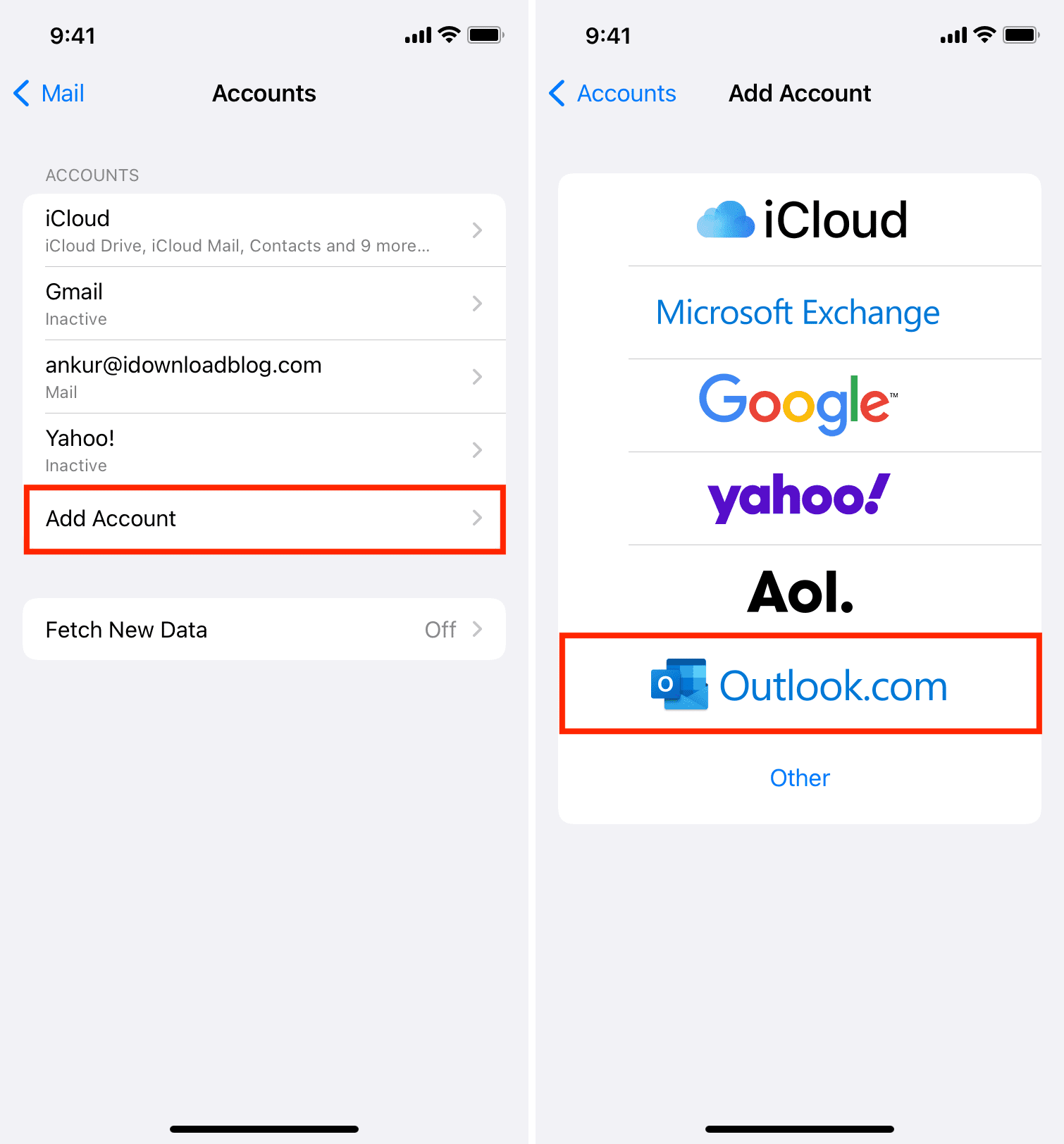
  • To create your email profile, tap Settings > Mail > Add Account > Other
  • Enter your name, Hotmail address and Hotmail password.
  • You may get an error message saying that “This mail service is not supported by the iPhone”. Tap OK to ignore this message.
  • For fast and easy email download, tap on POP. IMAP is possible, but tends to be slow and more complex to handle.
  • Enter your full name and your email address. The account description will be filled automatically.
  • Enter the incoming server name in.izymail.com Your email address is also your user name.
  • Enter the outgoing server name out.izymail.com. Your email address is also your user name.
  • Tap Save and wait… This can take a very long time!!
  • The iPhone will try various methods to connect to the incoming mail server which can take a considerable amount of time…
  • You will get the following error message: “Cannot connect using SSL. Do you want to try setting up the account without SSL?” Tap YES and wait…
  • The iPhone will repeat the process for outgoing mail which can take even longer, up to several minutes…
  • Finally, the iPhone will start downloading messages.

Refer to izymail website for more info and detailed instructions on how to set up Hotmail on your iPhone.

The only problem I have with this method is that the emails I send from my iPhone sometimes get caught in spam folders. Besides that it works like a charm.

3. Upgrade to Windows Live Hotmail Plus to enable POP

Once again, this solution is not free. Upgrading to Windows Live Hotmail Plus will also cost you about $20/year but you get additional benefits such as 10GB of storage, no ads, etc… I actually just upgraded for the purpose of trying out what I’m writing about…

I have installed Hotmail on my iPhone using Hotmail Plus just a few hours ago and I already love it. Why? Compared to izymail, the set up process is much easier and more straightforward. It took me a good 10 minutes to set up izymail whereas it took me about 50 seconds to set up Hotmail Plus. Furthermore, it seems that emails download faster.

Here is how I installed Hotmail on my iPhone using Windows Live Hotmail Plus:

  • First, sign up for Windows Live Hotmail Plus
  • To create your email profile, tap Settings > Mail > Add Account > Other
  • Enter your name, Hotmail address and Hotmail password.
  • You may get an error message saying that you need to be a Windows Live Hotmail Plus subscriber. Tap OK to ignore this message. Note that, this is a new feature that came with firmware 2.0. Before, the iPhone didn’t warn you that you needed an Hotmail Plus account; it simply gave you an error message.
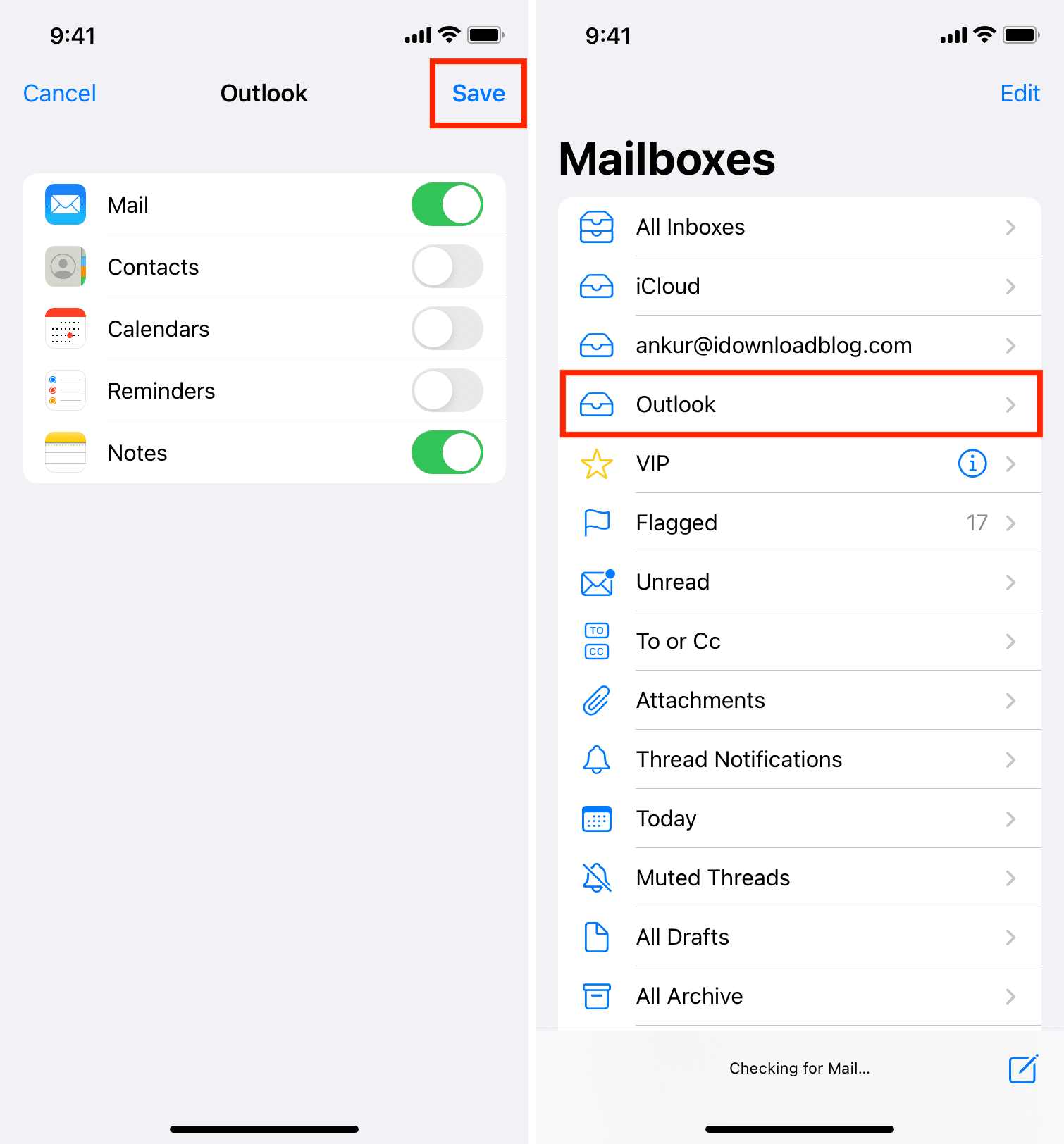
  • Click “Save”, and you’re done!

The email settings such as incoming and outgoing servers will be populated automatically. Your iPhone will instantly start downloading your emails from Hotmail.

For information, here are the Windows Live Hotmail Plus POP3 settings (thank you Edson Reyes)

Account Information:
Name: John Smith (note: enter your own name)
Address: example@hotmail.com (note: enter your full Hotmail email address)
Description: Hotmail

Incoming Mail Server:
Host Name: pop3.live.com
User Name: example@hotmail.com (note: enter your full Hotmail email address)
Password: password (note: enter your Hotmail password)

Outgoing Mail Server (SMTP):
Host Name: smtp.live.com
User Name: example@hotmail.com (note: enter your full Hotmail email address)
Password: password (note: enter your Hotmail password)

Advanced Settings:
Incoming Uses SSL: On
Outgoing Uses SSL: On
Authentication: Password
Delete from Server: When removed from Inbox (or your preferred option)

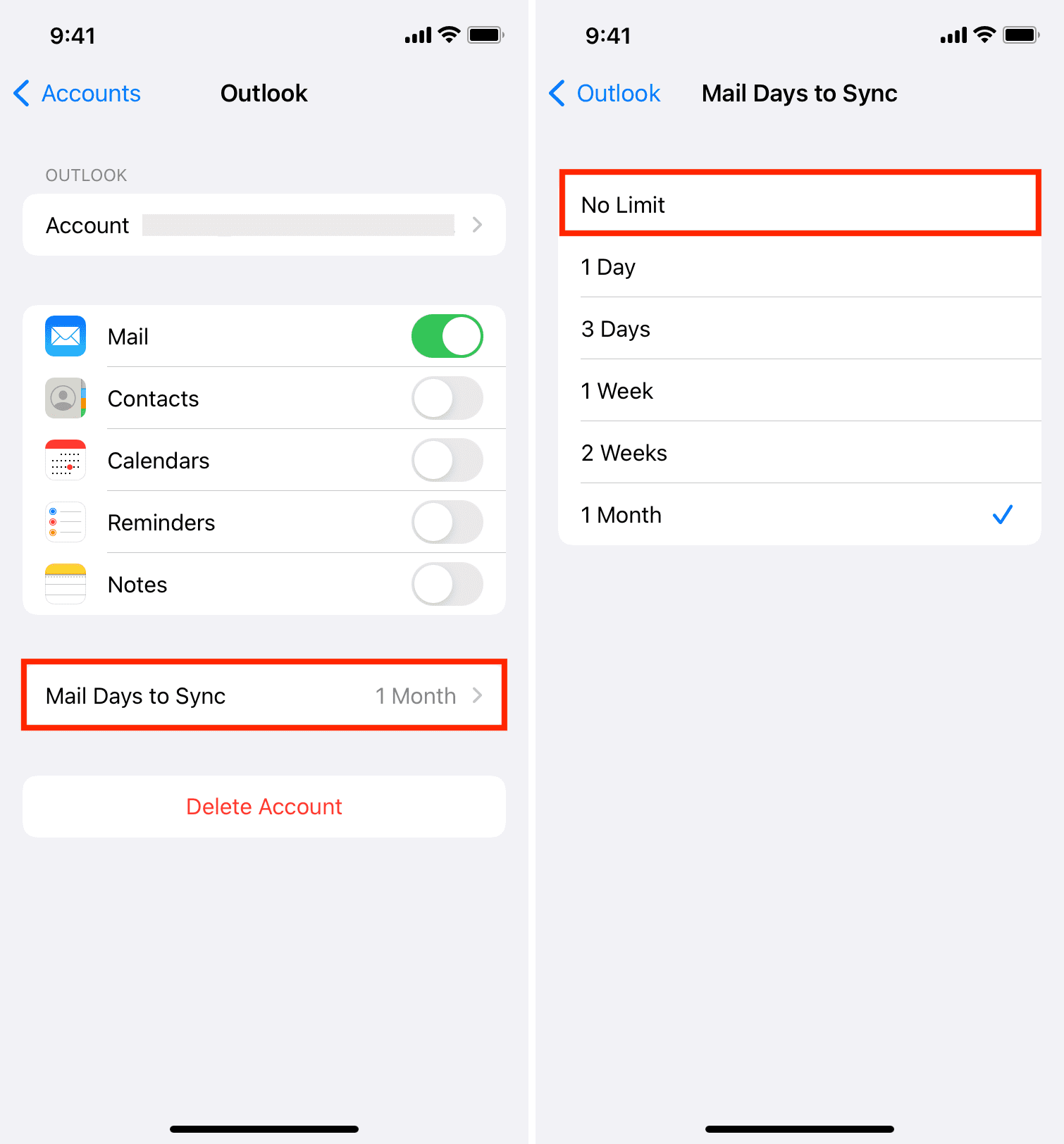
Now let me warn you about something though. By using the Hotmail Plus solution, your iPhone will download every single email that is in your Hotmail inbox, meaning that if you have 5,000 emails in your Hotmail, it will download them all, which would take hours. There are 3 solutions for this:

  1. Do like me and keep your Hotmail inbox clean. I only have a few emails in my Inbox at any time as I delete emails as they come or I place them in folders.
  2. Place all the emails that are in your inbox in a folder so your iPhone doesn’t download them.
  3. Delete all the emails that are in your inbox. If you have 500 or more emails, chances are they’re old emails that you don’t need to keep.

That’s about it.

Conclusion

As I mentionned above, paying $20/year to subscribe to Windows Live Hotmail Plus is the best solution. It is fast and easy to set up and emails are downloaded to your iPhone much faster.


49 Responses

  1. i just forward all my hotmail to my mobileme and push takes care of the rest :)

    (you can also forward it to your gmail and use fetch)

     
  2. Hello Peter,

    I’d be curious to know how you forward your Hotmail emails to MobileMe. To do so, you’ll still need to upgrade to Hotmail Plus as Hotmail doesn’t let you forward emails to an address different from @hotmail.com or @msn.com or @live.com

    Let me know.

    Thanks

    Sebastien

     
  3. THIS PROCESS REQUIRES JAILBROKEN FIRWARES 2.0, 2.0.1, 2.0.2, or 2.1

    You’ll find Freepop’s in the Big Boss repo, on Cydia.

    Now, for this procedure you’ll also need Mobile Terminal, SSH, Curl, XML Parser Toolkit (expat), and BossPrefs. They are all on Cydia, just use the search function.

    1. After installation of all the Cydia apps, REBOOT is essential.

    2. Go to Terminal, and type in -

    ssh localhost -l root (Dont confuse the -l with -1. Its a lower case L. Press return to initiate the command.)

    3. When prompted, type ‘yes’ (this may or may not come up, it depends)

    4. When asked for password, type alpine

    5. Now you should be on #root

    6. Now type -

    freepopsd -p 110 &

    If you recieve no error, you have done it correctly. There should be a number (e.g
    (1) 90), and no mention of any problems.

    7. Now, exit Terminal.

    8. Go to Mail.app if you dont have an email already installed. If you do, go to Setting>Mails, Contacts, Calendars>Add Account

    9. Go to Other

    10. Type in your details from your hotmail account, including your proper email and password

    11. You will get an error about POP3. Ignore, and go down to ‘Incoming Mail Server’. ENSURE THAT POP3 IS HIGHLIGTED AT THE TOP OF THE PAGE.

    12. In host name, delete what is there, and type in ‘localhost’

    13. Click save

    14. Click ‘yes’ on the screen which appears

    15. Voila, it will begin to download your emails.

    15. Go to you Settings>Mail, Calendars> Adjust the ‘Show’ to ’200 recent messages’, otherwise some messages might not be transferred.

    16. Now go back to Cydia, and download the Freepop’s Bossprefs Plugin Toggle.

    17. Go to BossPrefs, and toggle Freepops to ‘ON’

    All done. Credits to this fantastic Utility go to oNaiPs

     
  4. Hey Sebastien,

    -> Options > Manage your Account > forward email to another account > xxxx@me.com

    i didn’t have any troubles…..

     
  5. Hello Peter,

    That’s interesting because my Hotmail didn’t allow me to do this before I upgraded to Hotmail Plus.

    The “forward” is not a solution. Personally, I do not want to forward my emails to another address. I simply want to be able to manage my emails in the mail.app application.

    If Hotmail is a secondary email service for you, then I understand it’s no big deal to forward. In my case, Hotmail is my main email service. so I don’t want to forward them. Does that make sense?

    Thank you

    Sebastien

     
  6. yep, my main email accounts are my mobileme and my gmail… i’ve had this hotmail account since a while back and it isn’t the most professional of accounts but i still use it here and then so forwarding works fine for me… on the other hand, the freepops comment seems to be a great idea, i just don’t use my hotmail enough to give it a try.

    good luck!

    (and i don’t know why i have forwarding… i’m in canada i don’t know if that makes any difference)

     
  7. Pingback: How to set up Hotmail on the iPhone | The iPhone

  8. Just forward all mail to your Gmail or MobileMe account and set up IMAP for those accounts. Easiest and no need to pay extra $20. And eventually just get rid of that POS hotmail — it’s so 90s.

     
  9. hi,Sebastien.

    i success to get my live mail.that means i can use it forever for free,right?

     
  10. o.i got the wrong person.soRRY.
    it should be Vistauser…

     
  11. why not forward to yahoo. Its easier than Gmail and it pushes unlike Gmail.

     
  12. Hello Robert,

    By default, Hotmail doesn’t allow you to forward your emails to an address different from @live.com, @msn.com or @hotmail.com. You can’t forward to another email address without upgrading to Hotmail Plus.

    Sebastien

     
  13. is there any way i can sync the folders too, from outlook, or from the iphone itself?

    i do have over 1000 emails all of them been dropped on their respective folder each time i get them. i would never forward emails from hotmail to another acct since they get deleted.

    but i do need to get all the folders and sync them

    does anybody knows how to do this??

     
  14. yanith,
    You can’t do this as it would require IMAP. Unfortunately, hotmail only offers Pop3
    Sebastien

     
  15. i set it up already.i can receive email but i cant send,how come?it said username or password is wrong.

     
  16. Hey yLG,

    I have no idea why you’re having problems as the set up is easy as 1 2 3, as you could see.

    Try deleting the account and starting over again.

    Sebastien

     
  17. what username should i put on outgoing mail server?

     
  18. Seriously? Did you read the post or what?

     
  19. i read it carefully.

     
  20. If you are finding it difficult to get Hotmail on your iPhone you should have a look at mboxmail in Apples App Store.

    Or visit this link http://mboxmail.com

     
  21. Pingback: nFluent lets you access your Hotmail with an iPhone App

  22. Sebastien,
    i did all again but still cant send mail.it said cannot send mail.the sender address was invalid. i use live.com,not hotmail.com,and i put smtp.live.com as outgoing server.

     
  23. My hotmail email gets downloaded to my iPhone just fine but it does not sync. in other words when i delete an email on my iPhone it does not delete it in my hotmail inbox and visa versa. Is there a way to sync?

    thanks

     
  24. Hi bc,

    No, there is no way to sync your Hotmail with the iPhone so far, other than using a 3rd party such as izymail.

    Sebastien

     
  25. ok, bummer. what i end up doing now is periodically deleting the account and re-adding.

    thanks Sebastien for the quick reply

     
  26. Hi I have followed your guide and great it works but get you tell me how to get my folders as well.

    many thanks

     
  27. Pingback: Hotmail POP3 Support For iPhone Now Available In Select Countries

  28. There is also an app worth mentioning. It works very well, but its not free ($9.99 when I bought it). The name is “m-Box Mail”. Its a very good quality app and totally worth the money if you like your email to be only a click (or tap) away

     
  29. Thanks !! very helpful post!

     
  30. Thanks very helpful, I was wondering why I couldn’t connect on Live and was beginning to get a little frustrated!

     
  31. This has all been sorted now. To link your hotmail directly do the following:-
    log out of hotmail from any other computer.
    switch off wi-fi in iPhone settings menu.
    go to iPhone mail menu and add email account in usual way save and exit.
    Switch wi-fi back on.

    I’ve just completed this and it worked a treat, no third parties, no hotmail upgrades.

     
  32. This is a good answer but it still doesn’t solve my problem. I don’t see why I have to pay to acess my emails when I already have to pay for my line rental and iPhone.

     
  33. I just did exactly what Marc said and my hotmail is now on my iphone, no problems, no upgrades, no additional fees.

     
  34. thanks for the great advice i just followed your instructions
    and put these details into my iphone and it worked without upgrading!!
    Incoming Mail Server:
    Host Name: pop3.live.com
    User Name: example@hotmail.com (note: enter your full Hotmail email address)
    Password: password (note: enter your Hotmail password)

    Outgoing Mail Server (SMTP):
    Host Name: smtp.live.com
    User Name: example@hotmail.com (note: enter your full Hotmail email address)
    Password: password (note: enter your Hotmail password)

    thankyou so much ;-)

     
  35. thanks ash, that really helped!!!

     
  36. Yes, really thanks to ash! It was great feeling to see it works!!

     
  37. I linked this post in an article I just wrote :-)
    (Please mail me if it’s not ok.)
    Cheers!

    http://www.johannes-eva.net/index.php?page=2010-01-ten-reasons-why-not-to-use-hotmail

     
  38. Thanks,
    this was really helpful, all set up now!

     
  39. Just add the hotmail without upgrading modern hotmail lets you use pop/imap without additional fees

     
  40. After much seraching on how to get hotmail on my new iphone, i followed Marc’s advice and it worked first go, no hassle dead easy!!!! Thankyou soooooooooooooo much!!!!!

     
  41. Hi Seb,

    I use the POP feature of hotmail plus which worked fine on iPhone however it does not synch. Is there anyway to achieve this without having to forward your hotmail emails to another email provider ?

    Cheers

    Phil

     
  42. Thanks for the article, it works great!

     
  43. 1st off, yes, I have a Hotmail account. Not proud of it, but have had it for over15 years now and am stuck. I have to agree with the above posts, DON’T DO IT. Don’t start, or quit now, before more people get your address. Go with Gmail or anything else for that matter.

    With that said, the iPhone os 3.1.3 has an “advanced” setting area in the email settings.
    From your general iPhone Settings, go to “Mail, Contacts, Calendars”. Click your hotmail/live account. Scroll to the bottom and click on the “Advanced” button, then the “Delete from server” button. Then select “When removed from Inbox”. That’s it.

    This is not a true synch of course, but it will delete the email from your Hotmail/live account when you delete it from your iPhone. I don’t use folders much so this has kept me limping along, delaying my inevitable fate of moving to another mail service, for another – who knows how long.
    Hope that helps…

     
  44. How about getting Hotmail folders to show in the mail app?

     
  45. Pingback: Coding IT

  46. Hi, I would also like to know how to get other folders on my iphone 4.

     
  47. Pingback: iPhone Games » How to Set Up Hotmail on Your iPhone

Your Comments

Leave a Reply


Submit Comment